Post in your community and organize topics
Write posts and announcements, pin the important ones, and sort posts into topics.
Write a post
On Community, tap Share a question or a trigger request….
If your community has topics, pick a Topic. Add a Title and your text, then tap Post. Tick Pin to the top to keep an important post first.
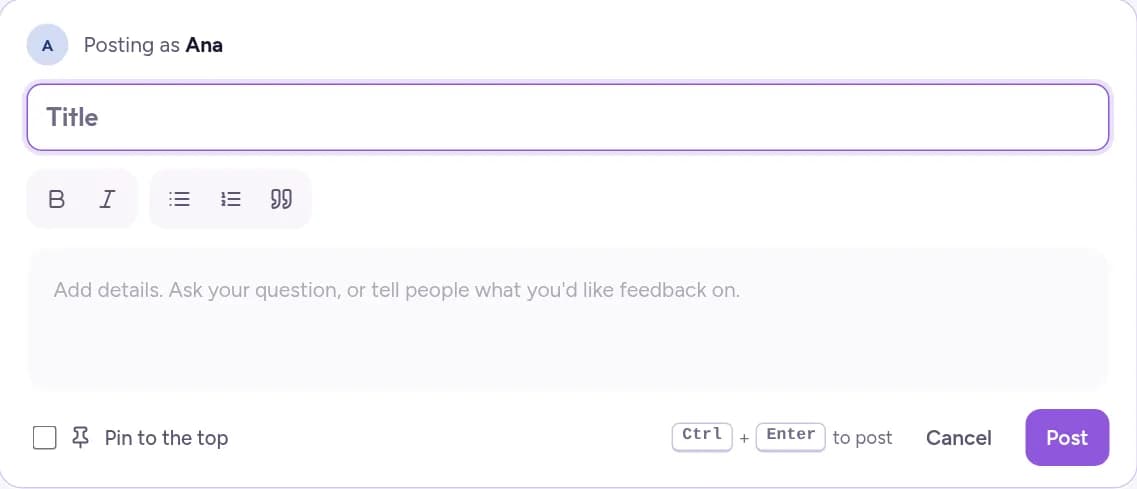
For news, tap Post an announcement in Creator tools, next to the feed (under it on a phone). The form opens on your first topic that only you can post in, if you have one.
Start with a welcome post: when your live streams happen, where the replays are and how to send trigger requests. While your feed is empty, Write a welcome post fills in a draft for you. Tick Pin to the top so new members see it first.
Look after the feed
- Your posts and replies show a Creator badge next to your name.
- To pin a post later, open it, tap the three dots, then Pin to the top. Pinned posts sit in a box at the top of the feed, and Unpin takes one out.
- The same menu lets you Edit or Delete any post in your community.
- Members can report a post or a reply with Report. The report goes to the Whispernest team, not to you, and nobody else sees it.
Sort posts into topics
Go to Admin, then Post topics, and tap Add topic.
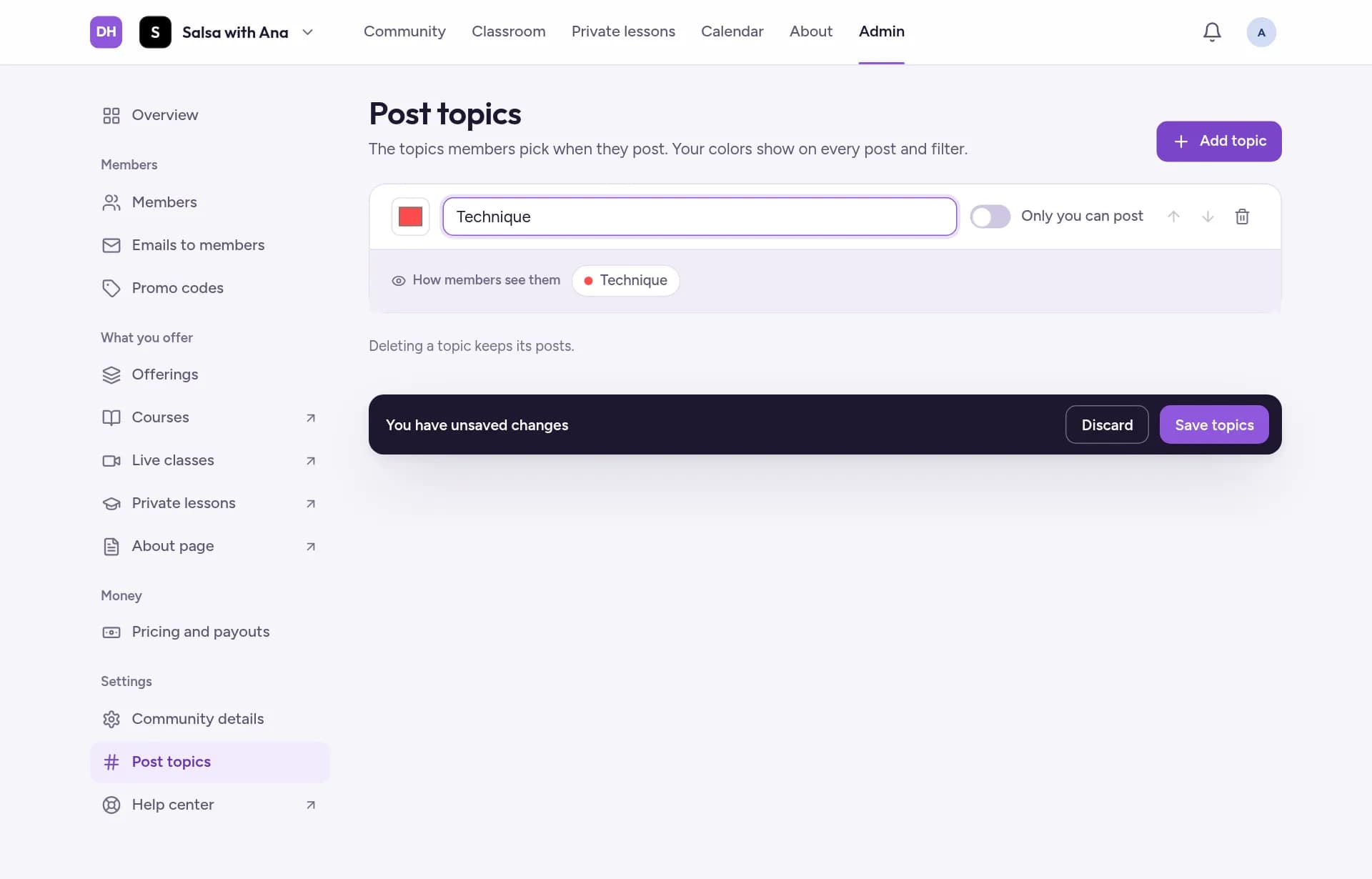
Write a Topic name, for example Trigger requests or Announcements, and pick its color. Turn on Only you can post for news that only you share.
Tap Save topics. Members then pick a topic each time they post, and everyone can filter the feed by topic.
Related guides
- See your members and email themFind who joined and how active they are, invite new members, add free members, and send an email to all or some of them.
- Schedule live streams and go liveSchedule a live stream once or every week, go live from your phone or computer, let members speak, and share the replays.