Set your price and get paid
Set up payouts, choose a monthly price and an optional yearly plan, and see what the platform fee is.
Set up payouts first
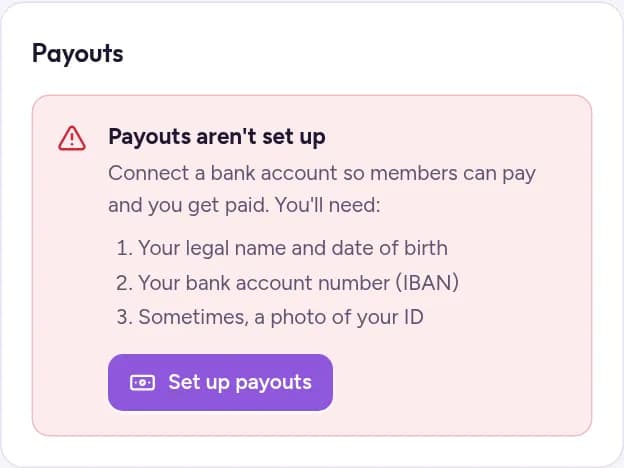
Before members can pay you, tell us who you are and add the bank account where you want to receive the money. It takes a few steps, right on your pricing and payouts page.
Go to Admin, then Pricing and payouts.
Tap Set up payouts. You'll need your legal name and date of birth, your bank account details, and sometimes a photo of your ID.
On the first step, choose your Country from the 41 countries where payouts are available. Your community will charge in that country's currency, and the country can't change once your payout account is created.
Add your bank account in your country's format: an IBAN in most of Europe, or your local bank numbers elsewhere, such as a Sort code in the UK or a Routing number in the US. The account must be in your name and in your community's currency. In a few countries, you add it on our payment provider's secure page instead, then come back to your pricing and payouts page.
Checking your details can take a day or two. When it's done, the page shows Payouts are on. If it shows Payouts need a few more details, tap Finish verification and add what it asks for.
Choose your price
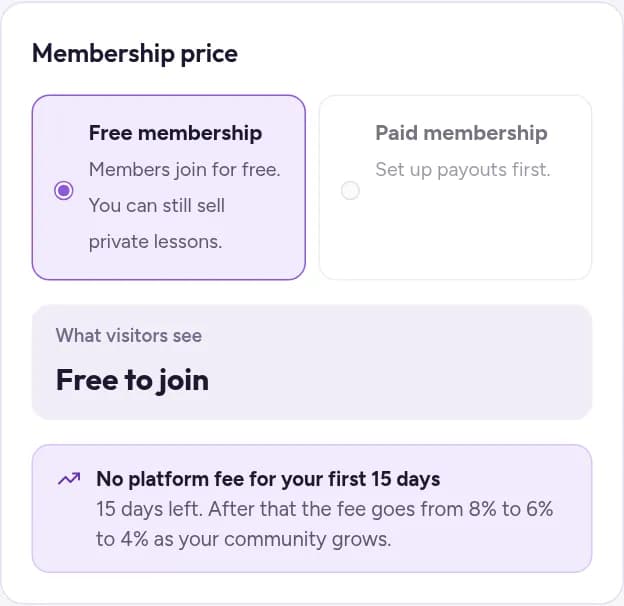
Under Membership price, choose Paid membership and enter a Monthly price, in your community's currency. The line under it shows the lowest price you can set. Paid membership stays greyed out until payouts are set up.
Optionally, turn on Offer a yearly plan and enter a Yearly price. About 10 times the monthly price gives members roughly two months free. In Why go yearly?, you can add a line members see when they choose a plan, for example: two months free.
Tap Save prices. The box What visitors see shows the price as it will appear on your About page.
Prefer a free community? Keep Free membership.
The platform fee
- No fee during your community's first 15 days. Your pricing and payouts page shows how many days are left.
- After that, 8% of each payment your members make, while your community has fewer than 50 members.
- 6% from 50 to 100 members, and 4% above 100.
When the money arrives
The money goes to your bank account automatically. Under Payout schedule, choose how often: As soon as possible, Weekly or Monthly, then tap Save schedule. Recent payouts, on the same page, shows each transfer to your bank and whether it's on the way or already paid.
Change your bank account
Under Bank account, on the same page, tap Change bank account. Enter the new account in your country's format and in your community's currency, then tap Replace bank account. In a few countries, the change is made on our payment provider's secure page instead: tap Continue to the secure page, and you'll come back afterwards.