Schedule live streams and go live
Schedule a live stream once or every week, go live from your phone or computer, let members speak, and share the replays.
Schedule a live stream
Go to Calendar and tap Schedule live stream.
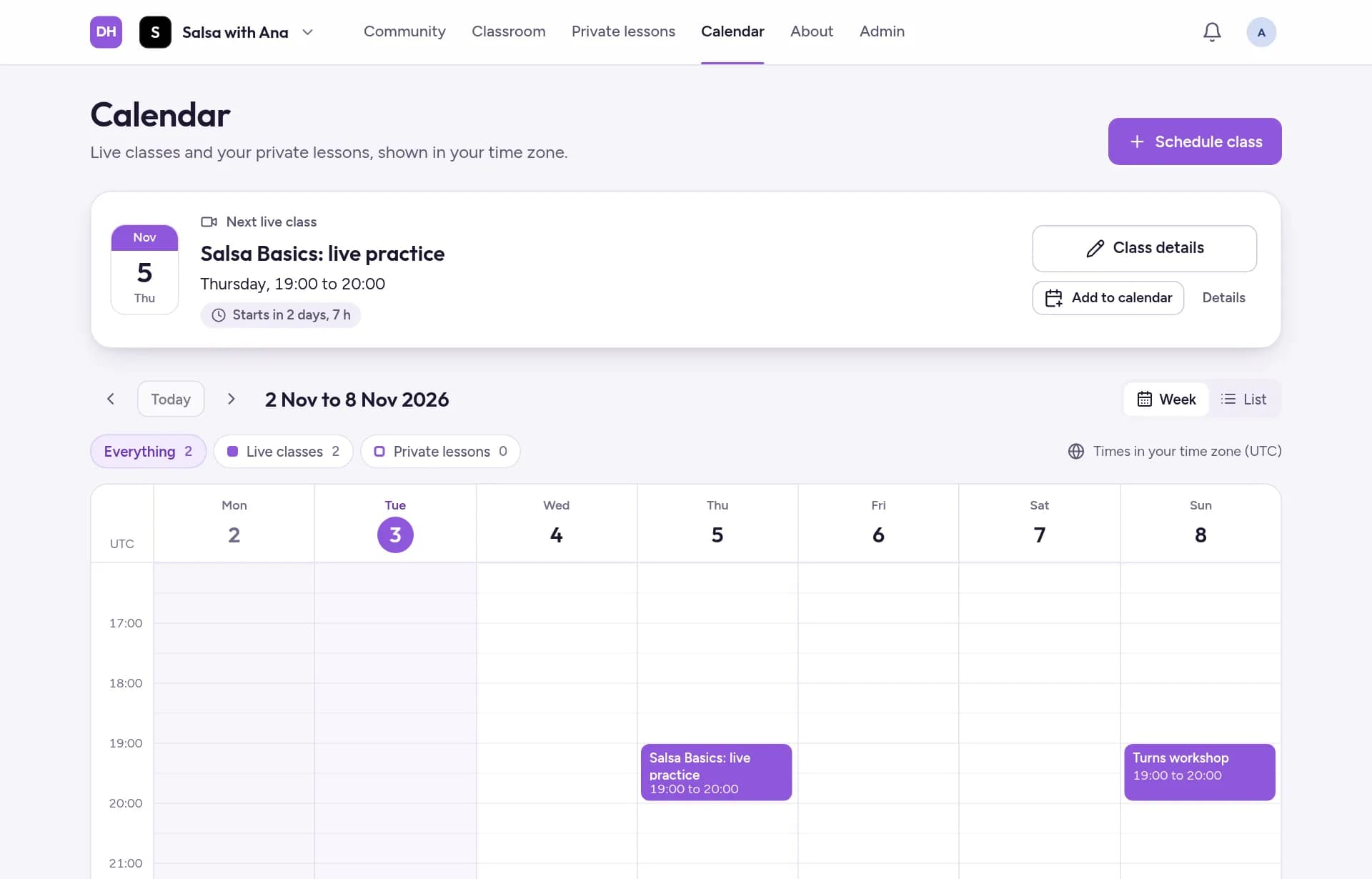
Fill in the Live stream name, What to expect, the Date, the Start time and the Length. Choose a length that covers the whole live stream: once its scheduled end has passed, nobody can join.
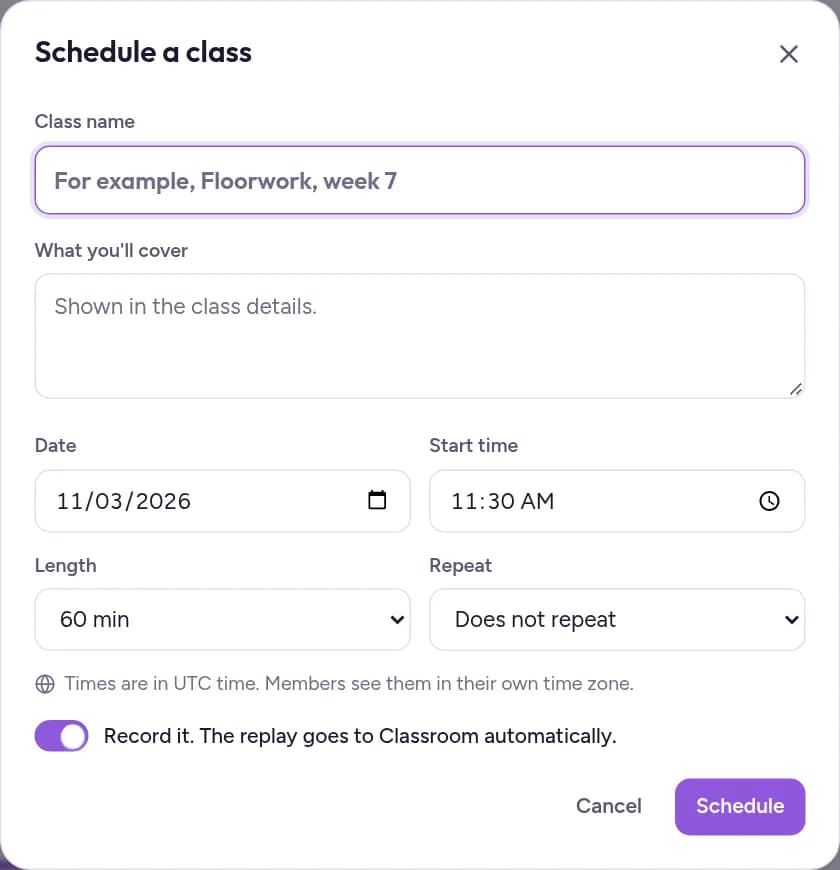
To go live every week, pick a Repeat option, for example every Sunday for 4, 6 or 12 weeks. Each date becomes its own live stream, which you can change or cancel without touching the others.
Recording is on by default, so the replay goes to the Library by itself. Turn the switch off if you don't want a replay, then tap Schedule.
What members see
Members find the live stream in the Calendar and on the Next live stream card of the community feed, with Add to calendar to save it to their own calendar app. About 30 minutes before the start, every member gets an email reminder. From 15 minutes before, they can join from either place.
Go live
Put on headphones. Your mic goes out exactly as it picks you up, in stereo, without the echo cancellation, noise reduction or automatic volume most video apps add, so members hear every whisper and tap as you make them. Without headphones, it would also pick up whatever your speakers play.
From 15 minutes before the start, Go live appears on the live stream in the Calendar. Tap it, then Join the live stream, and allow the camera and microphone when your browser asks. Your camera and mic turn on as you enter, and the recording starts if it's on.
To use another mic or camera, tap Settings in the room and choose your Microphone and Camera.
When you're done, tap End live stream: it ends for everyone and the recording stops. If you only tap Leave, the live stream stays open, and you can come back until its scheduled end.
Let members speak
Members watch and listen with their mic and camera off, and can write in the Chat. A member who wants to speak taps Request to speak (Raise Hand on a phone).
Their raised hand shows at the top of your Chat. Tap Allow next to their name to let them turn on their mic and camera, or Deny.
To take it back, tap Revoke next to their name. The member can also hand it back with Step Down.
A member's mic keeps the usual echo cancellation and noise reduction, so it doesn't bring echo or background noise into your live stream.
Change or cancel a live stream
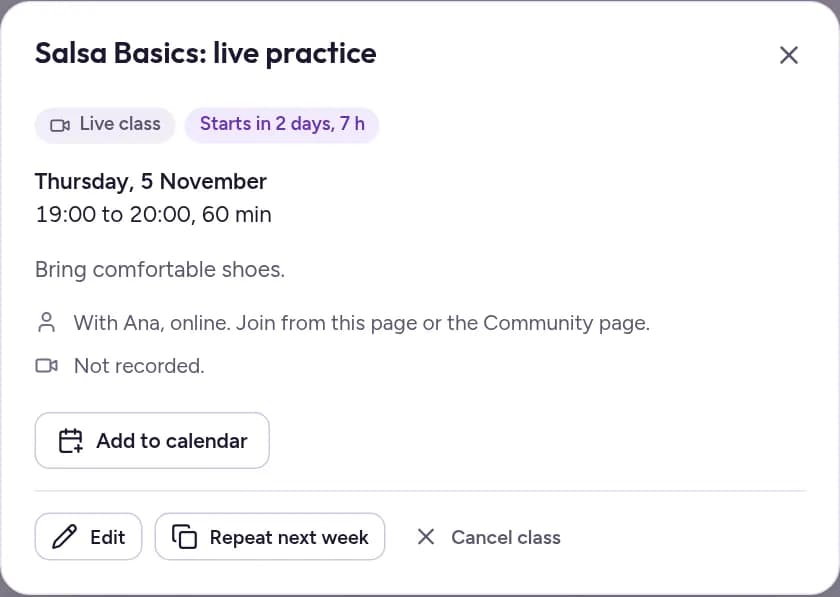
Tap a live stream in the Calendar to Edit it, Repeat next week or Cancel live stream. A canceled live stream stays on the calendar, marked as canceled, and sends no reminder; Restore live stream brings it back. Members get no email when you cancel, so tell them in the community feed.
Share the replays
A few minutes after a recorded live stream ends, its replay is added to the Replays collection in the Library, in a section for its month. At first only you can see it:
In the Library, tap See all 3 (with your own number) next to Replays.
Tap Collection settings, choose Published under Who can see it, and tap Save changes. From then on, members find every new replay there, and on past live streams in the Calendar with Watch the replay.