Create collections and free preview videos
Build a collection with sections and videos, publish it, let visitors watch a preview video for free, and choose the order of your collections.
Create the collection
Go to Library and tap Create collection.
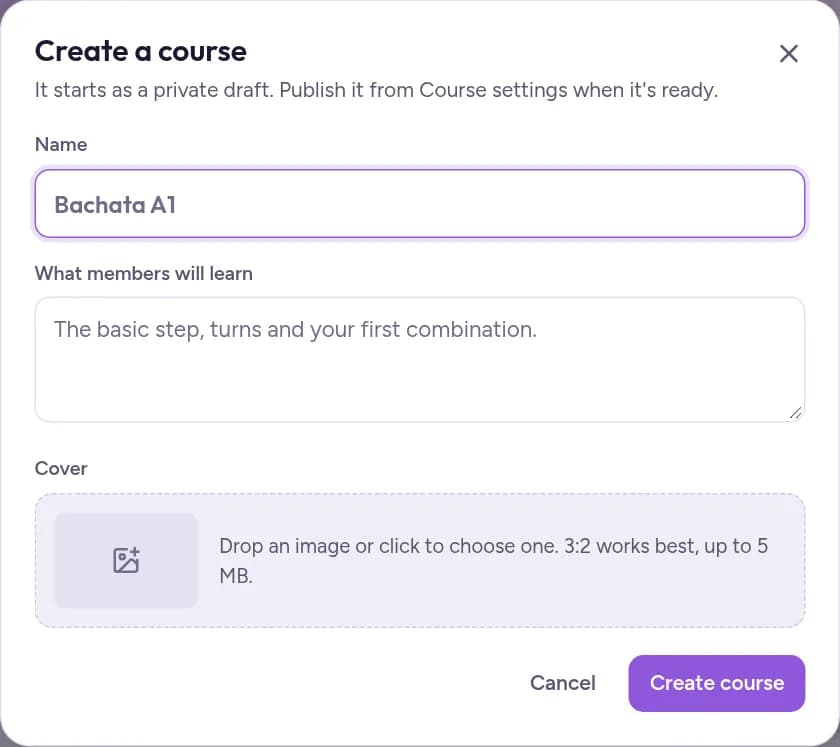
Give it a Name, say under What members will find which triggers it holds (slow tapping, soft brushing, whispers…), and tap Create collection. You can add a Cover now or later. A new collection starts as a private draft: only you can see it until you publish it.
Add sections and videos
Open the collection (a new one opens as soon as you create it) and tap Edit content.
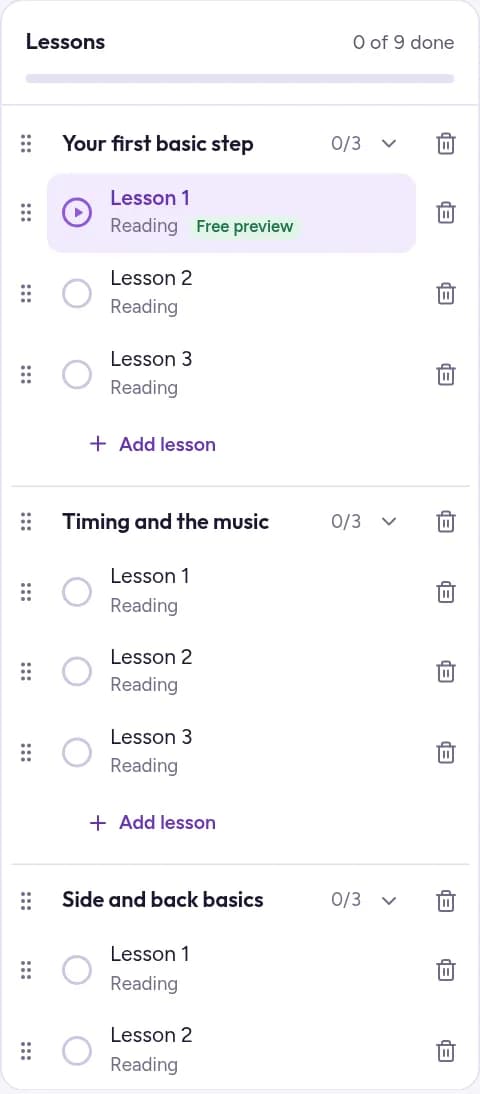
Open the list of videos: on a phone, tap the Videos button under the collection's title (on a wide screen the list is always on the left). Tap Add section, give it a name (for example, Slow tapping) and tap Add. Then tap Add video in that section and add each video the same way. Drag sections and videos to change their order.
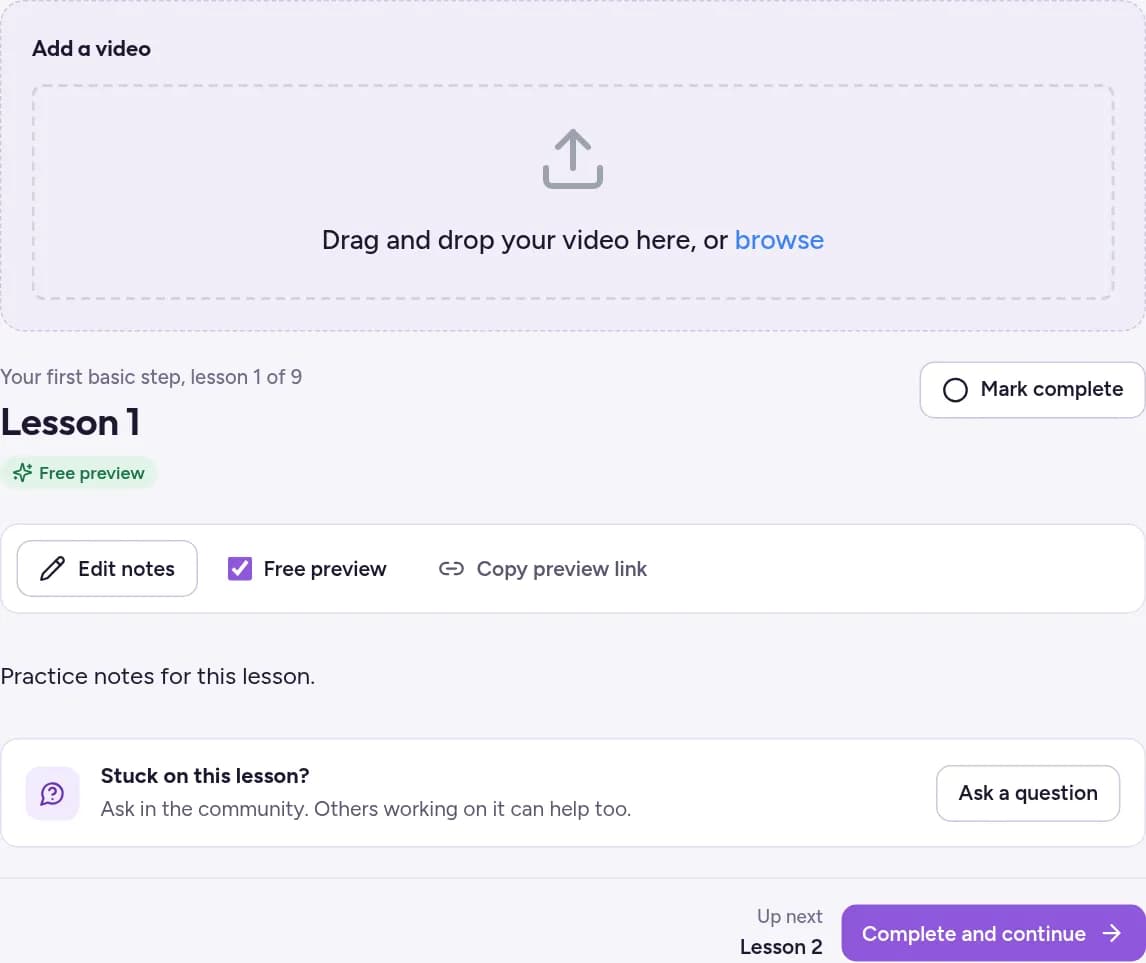
Pick a video in the list. Under Add a video, drop the file or tap browse to choose it on your phone or computer, and stay on the page until the upload finishes. The video then takes a few minutes to process.
To tell members what to expect (the triggers, the sounds, how best to listen), tap Add notes (Edit notes once the video has some), write, and tap Save notes.
Once the video has uploaded, you can add its voice in another language under Languages: tap Add language, choose the language and a voice-only audio file, then tap Add language again. Record it while watching the video so it lines up. Members switch language in the player.
Tap Done editing when you're finished.
Publish the collection
In the collection, tap Collection settings. Under Who can see it, choose Published, then tap Save changes. Every member now finds it in the Library.
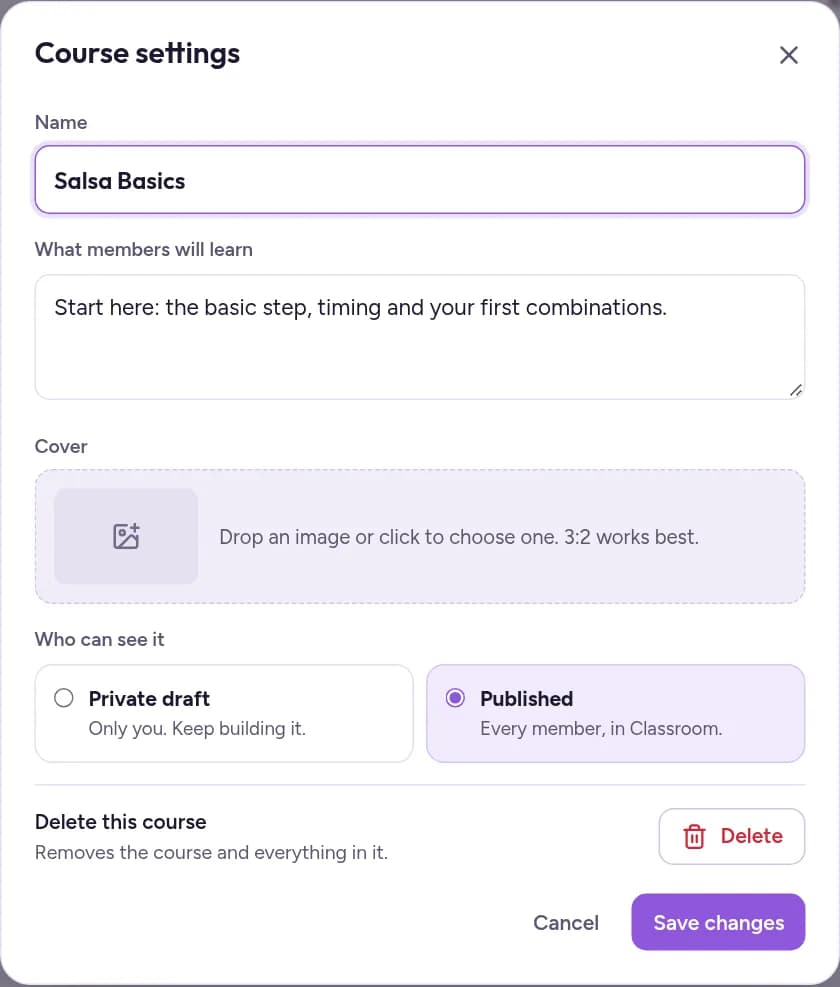
Your members get a notification. A window then offers to tell them by email too: tap Yes, notify members to send each one an email with a link to the collection, or Skip.
In Collection settings you can also add or change the Cover image. A 3:2 image works best.
Your recorded live streams arrive on their own in Replays, below your collections in the Library. Only you see them until you publish that collection the same way. More in how replays work.
Let visitors watch a video for free
Anyone can watch a free preview video, even before they join. It's the best way to let visitors hear your voice and your triggers.
In Edit content, open the video and tick Free preview.
Once the collection is published, your About page shows a Watch free button for it, and Copy preview link appears next to Free preview. Share the link under your YouTube videos or on Instagram.
Choose the order of your collections
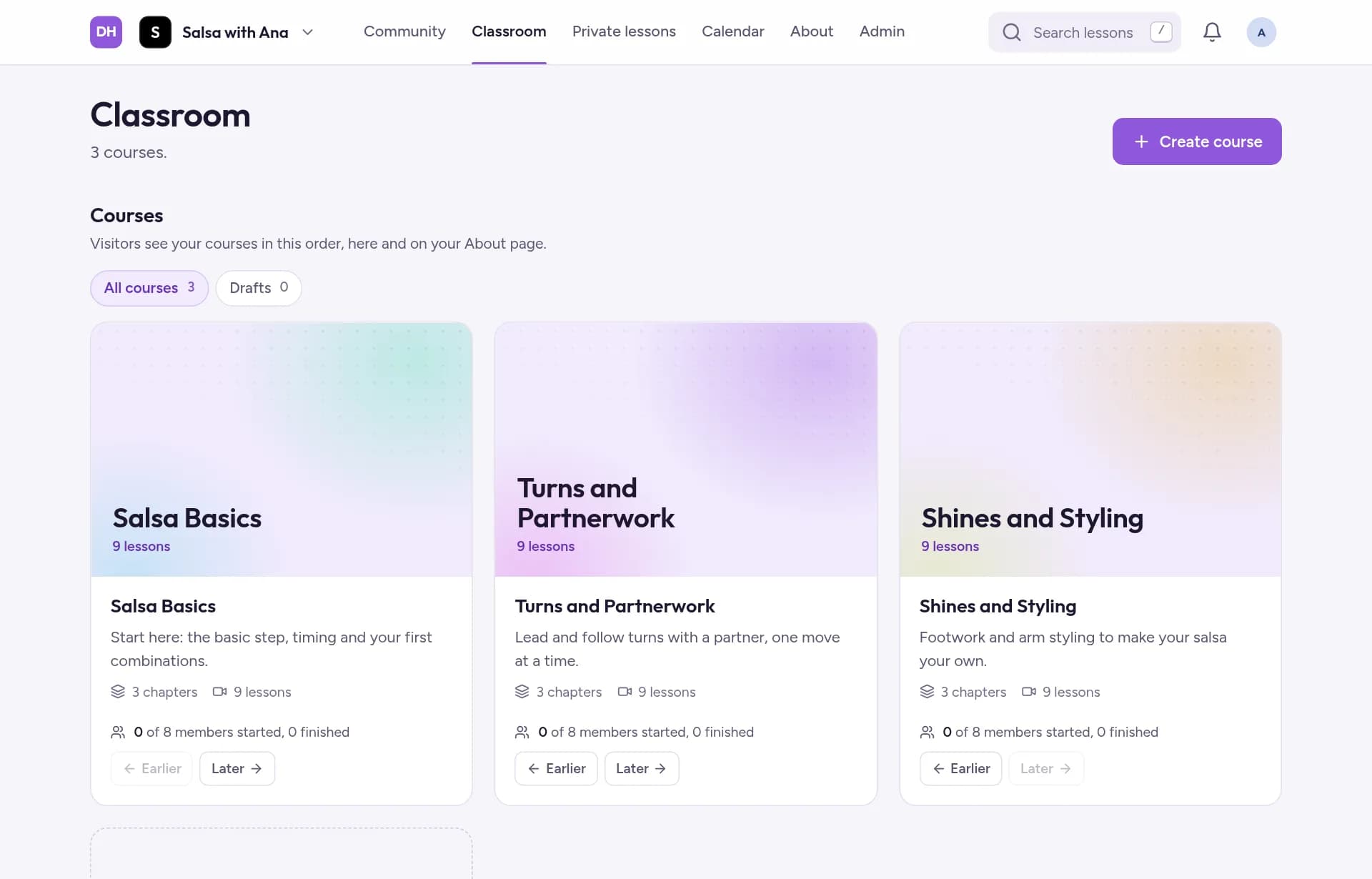
In Library, use Earlier and Later on each collection to move it (they show under All collections). Members see your collections in this order in the Library, and visitors see the same order on your About page.
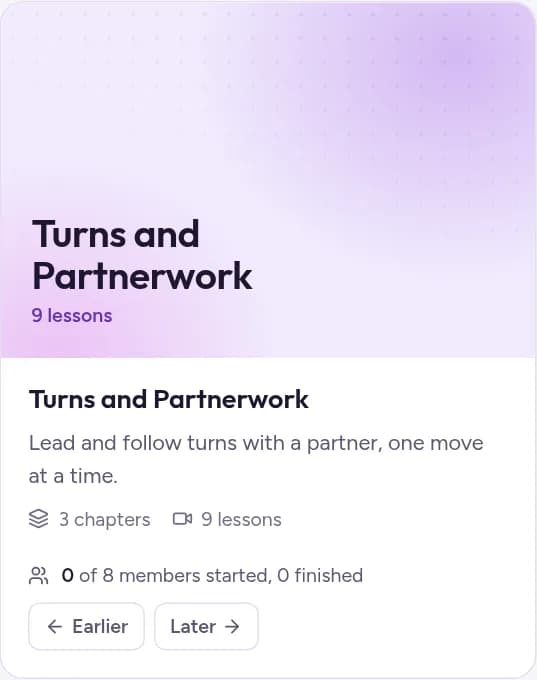
Until you move a collection, the newest one comes first. Once you've set an order, new collections are added at the end.