Edit your About page
Your About page is what visitors see before they join. Add your story and a welcome video, arrange the blocks, and check it as a visitor.
Open the editor
Go to your community's About page. On a phone, tap More at the bottom, then About.
The Page checklist shows what's still missing, such as a welcome video or your creator bio. Tap Add or Set up next to an item to do it now.
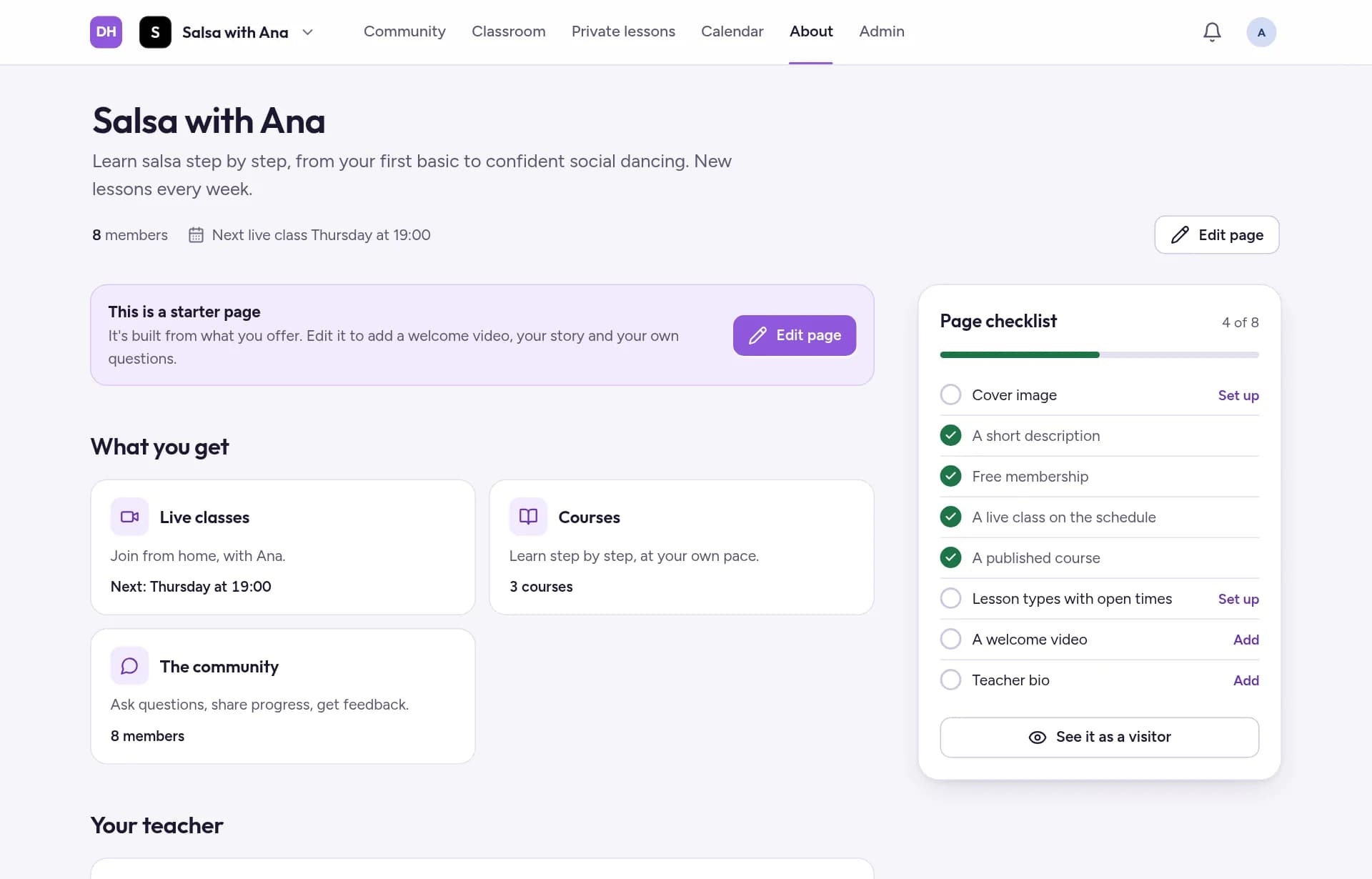
Tap Edit page to change the page itself. Until you do, visitors see a starter page built from what you offer. Tap Done editing when you're finished.
Arrange the blocks
The page is made of blocks. Each one has buttons to move it up, move it down or remove it, and most have a Section title to rename their heading. Everything saves on its own as you go.
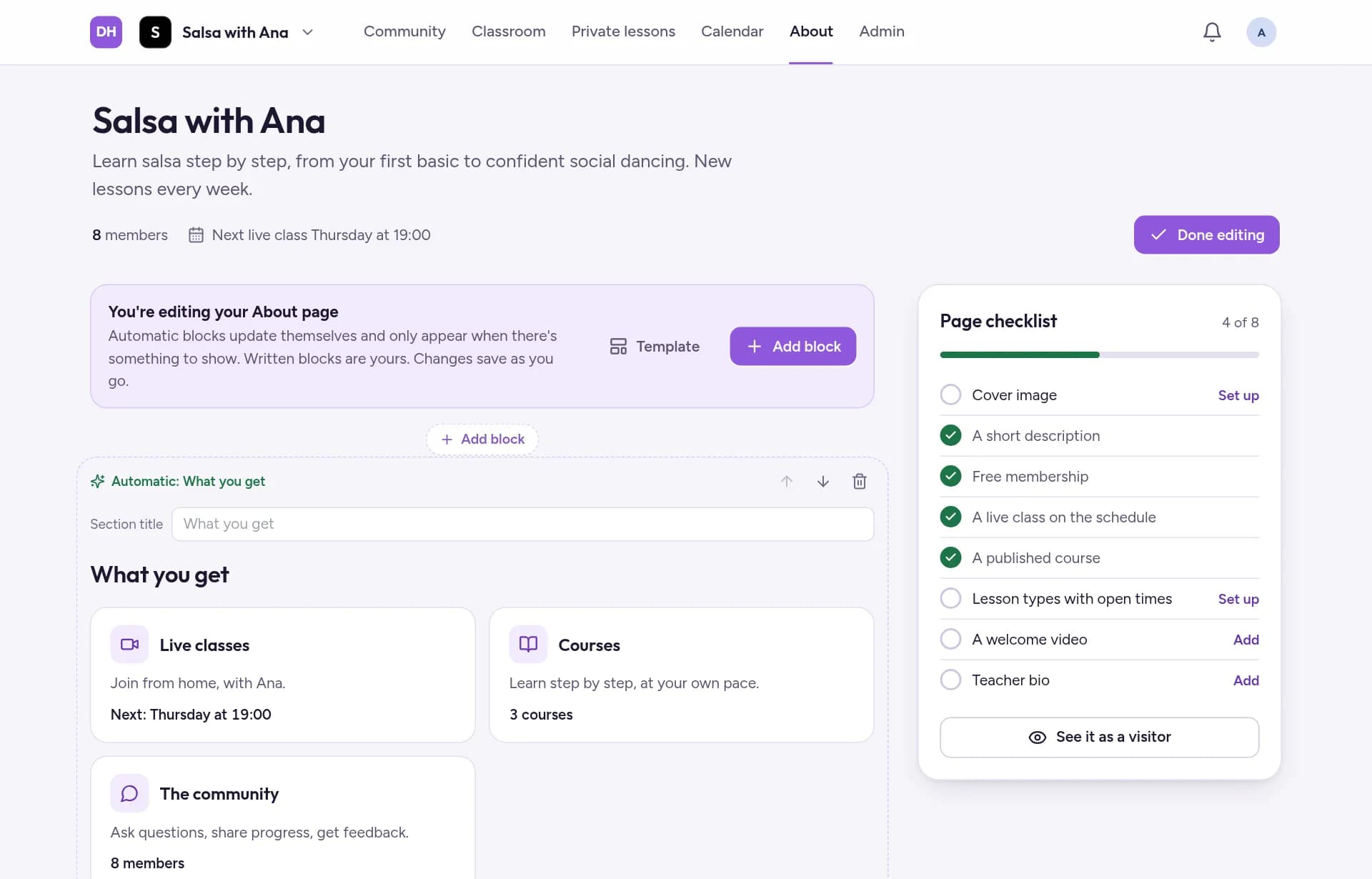
Tap Add block between two blocks to add one there.
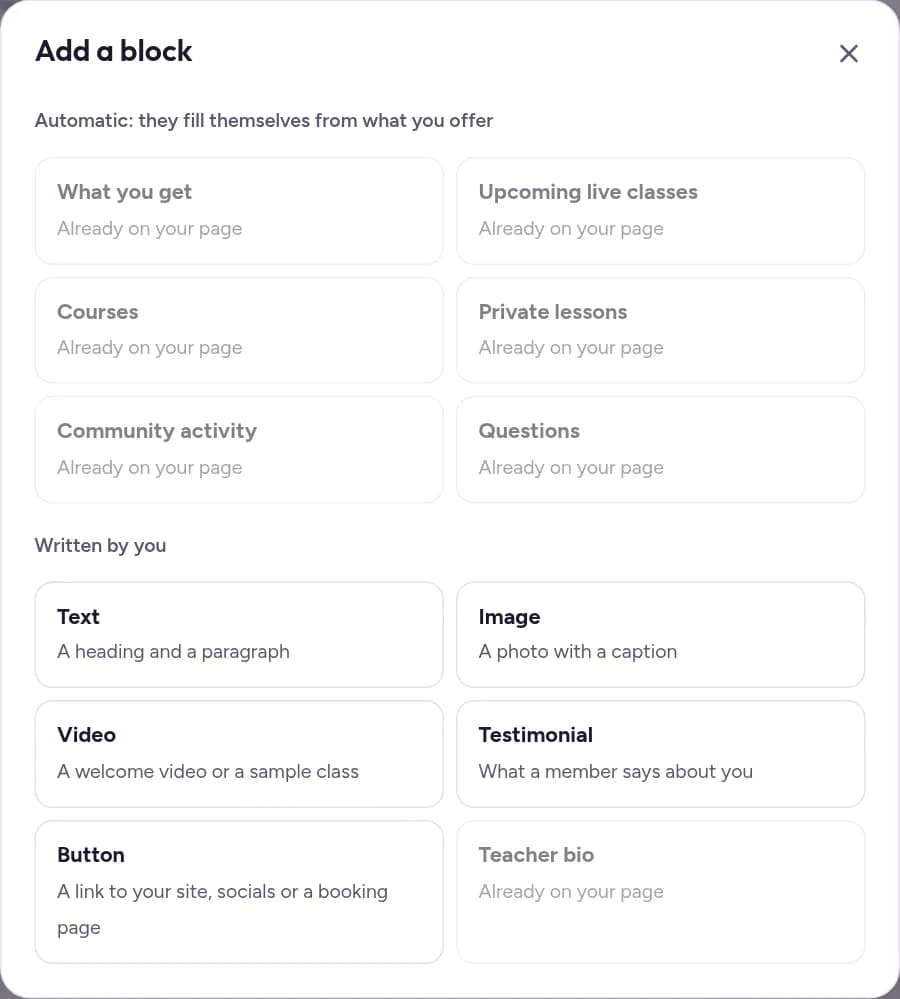
Written blocks are yours to fill: Text, Image, Video, Testimonial, Button and Creator bio.
Automatic blocks fill themselves from what you offer: What you get, Upcoming live streams, Collections, Community activity and Questions. Each one shows to visitors only once it has something to show. Collections lists your published collections in your library order.
Tap Template to reorder the page around your live streams (Live streams first) or your videos (Library first), or to drop the automatic blocks (Blank page). Then tap Use this template. Blocks you wrote are kept.
Help visitors decide
- Creator bio shows your name and photo from your profile. Write the rest in About you: what you make, your favorite triggers, who your videos are for.
- In a Video block, upload a short welcome video or a sample, such as a minute of soft whispers or tapping. It plays on the page once it has finished processing.
- Questions answers price and replays for you. Tap Add a question to add your own, for example whether you take trigger requests.
- Tick Free preview on a video in your library, and the Collections block shows a Watch free button for its collection, so visitors can try it before they join.
- The page ends with a closing invitation to join. While editing, write its title and text at the bottom of the page, or leave them empty to use the suggestion. Visitors see it, members don't.
Keep the description short
Your community's name, cover image and description appear at the top of the page. You change them in Admin, then Community details. Keep the description to one or two sentences, and tell your full story in a Text block, where you can use headings and lists.
Check it as a visitor
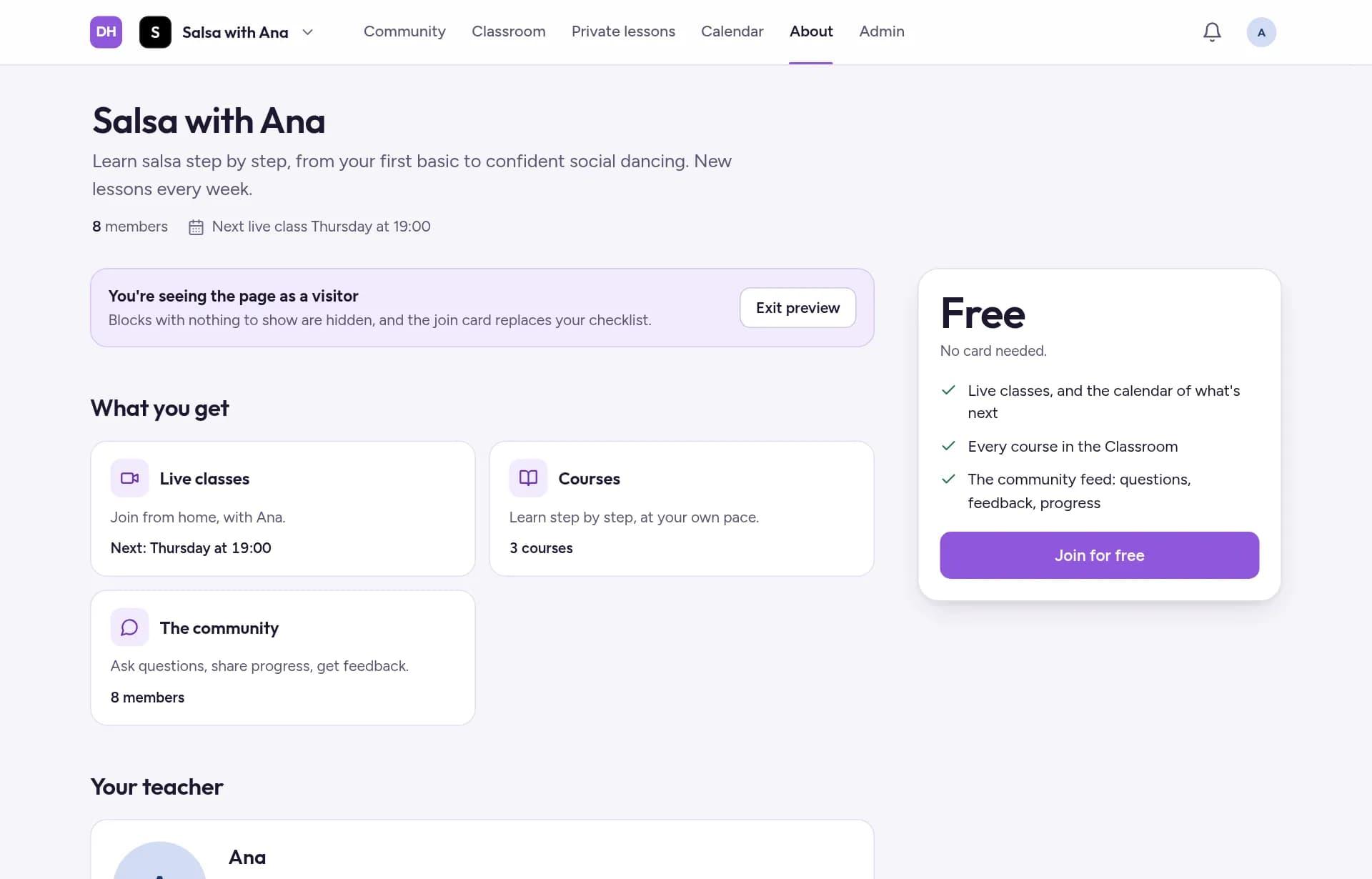
Tap See it as a visitor, under the Page checklist. The page shows exactly what a new visitor sees, with the Join button. Tap Exit preview to return.
Related guides
- Create collections and free preview videosBuild a collection with sections and videos, publish it, let visitors watch a preview video for free, and choose the order of your collections.
- Open or close your community to new membersChoose whether people can join now, sign up before you open, or not join at all.